
Download VolumeTouch – Free, Secure Windows Volume Control Tool for Instant Audio Adjustment
Revolutionize Your Windows Volume Control with VolumeTouch
If you're tired of navigating through the cluttered system tray just to adjust your volume, VolumeTouch is the elegant solution you’ve been waiting for. This free, lightweight software transforms the way you interact with audio on your Windows PC. Instead of hunting for the outdated speaker icon in the taskbar, VolumeTouch lets you control your system volume instantly using simple keyboard shortcuts or your mouse wheel. Whether you're editing videos, streaming music, or gaming, having quick access to volume adjustments can significantly improve your workflow and user experience.
Unlike the basic volume controls in Windows, VolumeTouch offers a modern, intuitive interface that stays out of your way when you don’t need it. The software runs quietly in the background, consuming minimal system resources, making it ideal for both low-end and high-performance machines. With just a few keystrokes—Ctrl+Shift + Up/Down Arrow or simply scrolling your mouse wheel—you can increase or decrease volume on the fly. Need to mute all audio instantly? Press Ctrl+Shift+0 and silence is just a tap away.
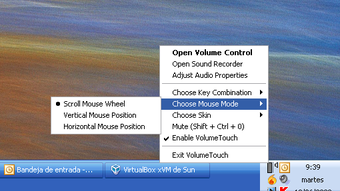
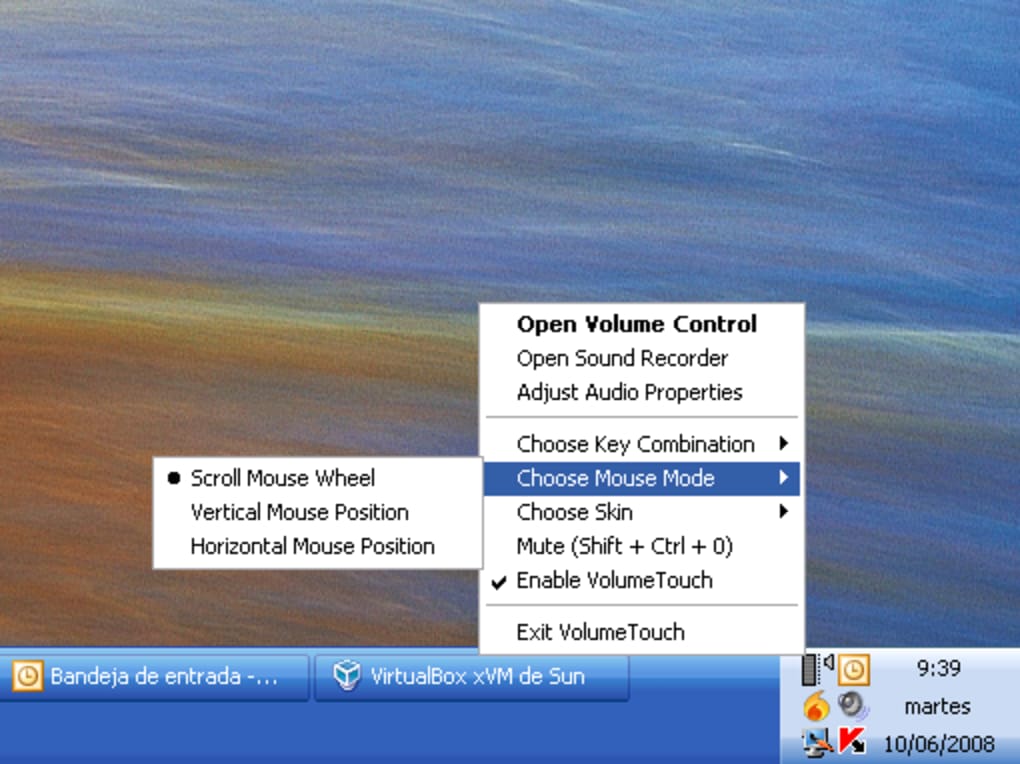
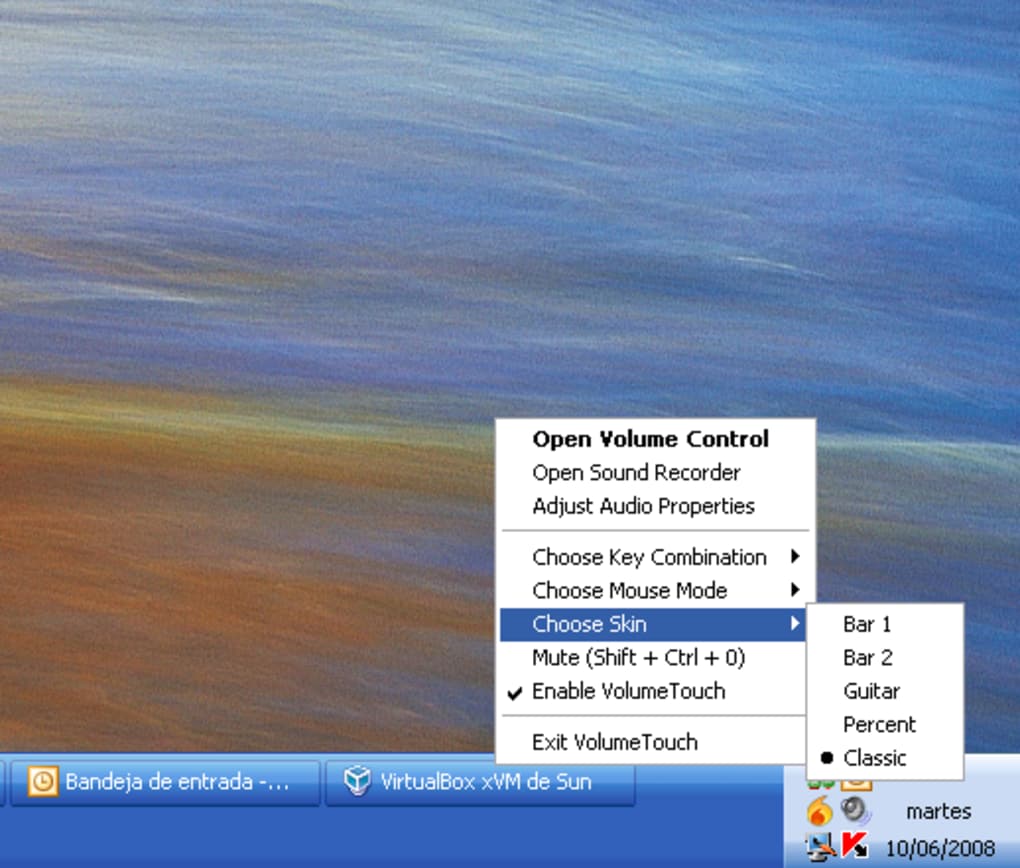
VolumeTouch isn’t just about convenience—it’s about customization. You can choose from five sleek, modern skins to match your desktop aesthetic, ensuring the volume slider blends seamlessly with your setup. Plus, the app gives you one-click access to advanced audio settings like the Sound Recorder, Audio Properties, and the full Windows Control Panel for audio management. If you’re someone who dislikes the default speaker icon cluttering your taskbar, VolumeTouch lets you remove it permanently with a simple toggle in the settings.
Best of all, VolumeTouch is completely free and secure. No ads, no bloatware, no hidden costs. It’s a clean, no-nonsense tool built for power users and casual users alike. Whether you're a content creator, student, or remote worker, this tool streamlines your audio experience and brings a touch of modernity to an outdated Windows feature.
Key Features That Make VolumeTouch a Must-Have Tool
- Mouse Wheel Volume Control – Adjust volume instantly by scrolling your mouse wheel, even when using full-screen applications or games.
- Keyboard Shortcuts – Use Ctrl+Shift + Up/Down to increase or decrease volume, and Ctrl+Shift+0 to mute/unmute all audio.
- Multiple Skins – Choose from five customizable visual themes to personalize your volume interface.
- Taskbar Icon Removal – Optionally hide the default Windows speaker icon for a cleaner taskbar.
- One-Click Access to Audio Tools – Direct links to Sound Recorder, Audio Properties, and Windows Control Panel for advanced settings.
- Lightweight & Fast – Minimal RAM and CPU usage ensures smooth performance on any Windows machine.
- Universal Compatibility – Works with all Windows programs, including games, browsers, and media players.
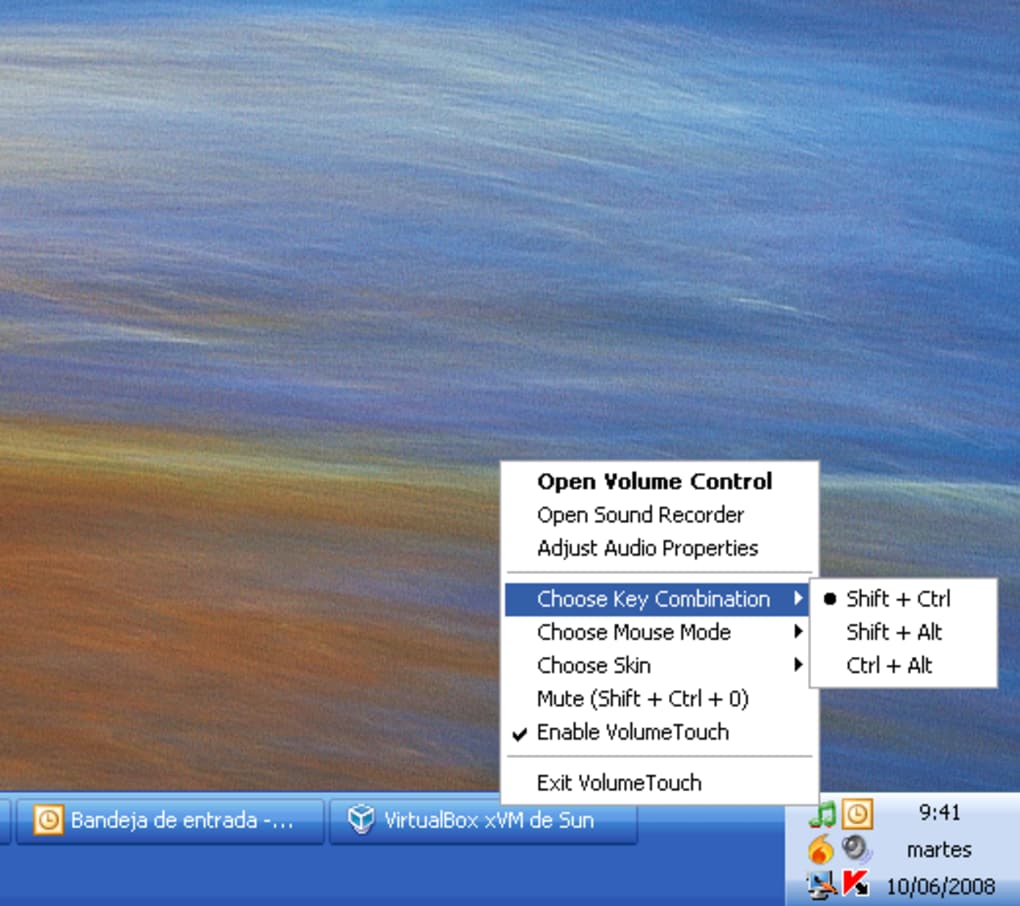
- Customizable Shortcuts – Advanced users can reassign keys to match their preferred workflow.
What truly sets VolumeTouch apart is its seamless integration into the Windows ecosystem. Unlike many third-party audio tools that require complex setup or interfere with system performance, VolumeTouch operates silently and efficiently. The interface is clean, unobtrusive, and responsive—ensuring that volume adjustments never disrupt your focus. Whether you're in a meeting, editing a podcast, or playing a high-intensity game, the ability to control volume without switching windows is a game-changer.
Another standout feature is the built-in access to Windows’ native audio tools. Instead of navigating through multiple menus, you can launch the Sound Recorder or adjust audio device settings with a single click. This is especially helpful for content creators who frequently switch between recording and playback modes. The customizable shortcuts also empower power users to tailor the tool to their exact needs, making VolumeTouch a flexible companion for any workflow.
With its focus on simplicity, performance, and user control, VolumeTouch delivers more than just volume adjustment—it enhances your entire Windows experience.
How to Install and Use VolumeTouch on Windows
Installing VolumeTouch is a breeze and takes less than a minute. First, visit the official download page and click the Download button. The installer is a small, secure file (under 2MB) that doesn’t contain any bundled software or adware. Once downloaded, run the installer and follow the on-screen prompts. The setup process is straightforward—no complex configurations are required.
After installation, VolumeTouch automatically starts in the background. You’ll notice a small icon in your system tray (unless you’ve chosen to hide it). To begin using it, simply press Ctrl+Shift + Up/Down Arrow to adjust volume. Alternatively, place your cursor over any open window and scroll your mouse wheel to increase or decrease volume—this works even in fullscreen mode, which is a major advantage over the default Windows control.
For advanced customization, right-click the VolumeTouch icon in the taskbar and select Settings. Here, you can:
- Choose from five different skins for the volume slider.
- Disable the default Windows speaker icon by unchecking “Place Volume Icon In Taskbar.”
- Assign custom keyboard shortcuts if the default ones don’t suit your preferences.
- Enable or disable the mute shortcut.
- Access the Sound Recorder or Audio Properties with one click.
One of the most appreciated features is the ability to use VolumeTouch across all applications—no need to configure individual programs. It works globally, making it ideal for multitaskers. The software also updates automatically in the background, ensuring you always have the latest version with security patches and performance improvements.
For users who prefer a clean desktop, removing the default speaker icon is a simple process. Just go to Settings → Audio Properties → Uncheck “Place Volume Icon In Taskbar” → Click OK. Your taskbar will stay clutter-free, and VolumeTouch will handle all volume needs efficiently.
Compatibility, Security, and Performance
VolumeTouch is designed to run smoothly on all modern Windows systems. It is fully compatible with Windows 10 and Windows 11, both 32-bit and 64-bit versions. Whether you’re using a desktop, laptop, or hybrid device, VolumeTouch integrates seamlessly without causing system slowdowns or crashes.
Security is a top priority. The software is distributed through trusted channels and is free from malware, spyware, or tracking components. The developers maintain transparency, and the source code is open for review. This ensures that your privacy and system integrity remain protected. No data is collected or transmitted without your consent.
Performance-wise, VolumeTouch is exceptionally lightweight. It uses less than 10MB of RAM at idle and consumes negligible CPU resources. This means you won’t notice any impact on your system’s responsiveness, even during intensive tasks like video editing or gaming. The app runs quietly in the background, only activating when you use the shortcuts or mouse wheel.
Additionally, VolumeTouch supports multiple audio devices, allowing you to switch between speakers, headphones, and external sound systems with ease. It also works with virtual audio devices and streaming platforms like Discord, Zoom, and OBS, making it a versatile tool for remote workers and streamers.
For users who want to keep their system optimized, VolumeTouch offers a clean uninstall process. Simply go to Windows Settings → Apps → Apps & Features, find VolumeTouch, and click Uninstall. All settings and temporary files are removed, leaving no trace behind.
Pros and Cons: Is VolumeTouch Right for You?
Pros
- Free and secure with no ads or bloatware.
- Instant volume control via mouse wheel or keyboard.
- Customizable skins and interface options.
- Removes default Windows speaker icon for a cleaner taskbar.
- One-click access to Sound Recorder and Audio Properties.
- Works across all applications, including fullscreen games.
- Lightweight with minimal system impact.
- Regular updates and strong developer support.
Cons
- Only available for Windows (no Mac, iOS, or Android support).
- Basic interface may not appeal to users who want advanced audio mixing.
- No built-in volume history or preset profiles.
Frequently Asked Questions (FAQ)
Final Verdict: A Simple Yet Powerful Upgrade to Windows Audio Control
VolumeTouch isn’t just another utility—it’s a necessary upgrade for anyone who values efficiency, simplicity, and a clean desktop. With its intuitive mouse wheel control, customizable interface, and seamless integration into Windows, it transforms a frustratingly outdated feature into a modern, user-friendly experience.
Whether you’re a casual user looking to mute your laptop during a call or a professional managing complex audio setups, VolumeTouch delivers consistent, reliable performance. It’s lightweight, secure, and free—making it one of the best audio tools available for Windows.
Download VolumeTouch today and take back control of your audio. Say goodbye to the cluttered taskbar and hello to instant, effortless volume adjustment. Your Windows experience just got a major upgrade.
Home Software VolumeTouch






